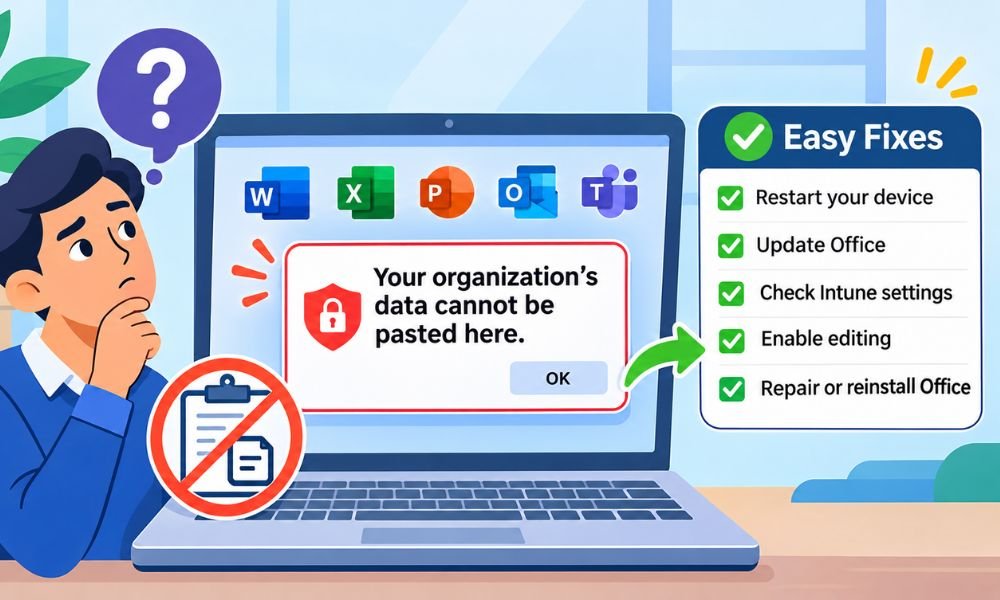
Have you ever tried to copy text from Outlook into Word and seen the message “Your organization’s data cannot be pasted here”? This error can stop your work and leave you wondering what went wrong.
The message often appears because your company uses Microsoft Intune to protect work data. It can also appear when an Office app has a problem or a document does not allow editing.
The good news is that some causes are easy to fix. In this guide for 2026, we will explain why the error happens and share 10 simple ways to fix it safely.
What Does Your Organization’s Data Cannot Be Pasted Here Mean?
The message means that an app is not allowing you to paste copied work data. This often happens when you move text from a company app into another app that is not approved.
Many companies use Microsoft Intune to keep work files safe. It helps control how employees use company data on computers and phones. These rules can stop private information from moving into personal apps.
For example, you may copy an email from your work Outlook account. When you try to paste it into a personal notes app, the message appears. This does not always mean something is broken. The company may have blocked that action on purpose.
Why Does Your Organization’s Data Cannot Be Pasted Here Appear?
One common cause is a Microsoft Intune security rule. Your company may allow copying between work apps but block pasting into personal apps. This helps protect private emails and important business files.
The error may also appear when Office is out of date or a file has a problem. Some documents open in Protected View. This means you cannot change the file until editing is allowed.
Another possible cause is a copy-and-paste limit. Some company rules only allow a set amount of text to be copied. Before trying a fix, check whether the problem happens in one file or across many apps.
Fix Your Organization’s Data Cannot Be Pasted Here by Restarting Your Device
Restarting your device is one of the easiest things to try. Sometimes Outlook or Word has a small software problem. A fresh start may help the app work again.
First, save all your open files. Close Outlook and other Office apps. On Windows, open the Start menu and select Power. Then click Restart. Mac users can choose Restart from the Apple menu.
When your device starts again, open the app and try pasting approved text. If the error is gone, a temporary problem may have caused it. If it remains, your company may have a security rule in place.
Fix Your Organization’s Data Cannot Be Pasted Here by Updating Office
Old Office apps can sometimes cause copy-and-paste problems. Microsoft releases updates to fix bugs and improve how its apps work. Keeping Office updated may help solve temporary errors.
Open Microsoft Word or Excel on your Windows computer. Click File → Account → Update Options → Update Now. Wait while Office checks for updates. Install any updates that are available.
After the update is complete, close and reopen Office. Try copying and pasting again. If the message still appears, the problem may be linked to your company’s data rules rather than an old app.
Fix Your Organization’s Data Cannot Be Pasted Here Using Intune Settings
Microsoft Intune lets companies control how work data moves between apps. For example, a company may allow copying from Outlook to Word but stop employees from pasting work emails into personal apps.
If you are an approved IT administrator, open the Microsoft Intune admin center. Go to Apps → Protection → App protection policies. Select the policy you need to review and find its data transfer settings.
Look for the setting called Restrict cut, copy, and paste between other apps. Check which apps are allowed to share data. Do not change the setting to Any app without company approval. If you are an employee, ask your IT team to review the policy.
Continue reading: René-Charles Angélil: Everything to Know About Celine Dion’s First Son
Fix Your Organization’s Data Cannot Be Pasted Here by Creating a New File
Sometimes the problem happens only in one document. The file may be damaged or have settings that stop editing. Creating a new file can help you find out whether this is the cause.
Open Microsoft Word and create a blank document. Copy some text that you are allowed to move. Try pasting it into the new file. If it works, the old document may have a problem.
You can also make a copy of the original file if your company allows it. Open the copy and check whether editing works. If pasting fails in every document, the cause may be an app setting or company security rule.
Fix Your Organization’s Data Cannot Be Pasted Here by Enabling Editing
Sometimes Microsoft Word opens a file in Protected View. This happens when you download a document from the internet or receive it by email. Protected View helps keep your computer safe from files that may contain harmful content.
When a file opens in this mode, you may see a yellow message at the top. It may say Protected View with an Enable Editing button. If you trust the file and have permission to change it, click Enable Editing.
Now try pasting your text again. If it works, the file was likely blocking changes. However, if you still see “Your organization’s data cannot be pasted here”, the problem may be linked to your company’s security rules.
Fix Your Organization’s Data Cannot Be Pasted Here by Checking App Permissions
Not every app is allowed to receive company data. Your workplace may let you copy text between Outlook and Word. However, it may block pasting the same text into a personal app. This helps keep private work details safe.
First, check where you are trying to paste the text. Make sure the app is approved by your company. You should also check whether you have permission to edit the file. Some shared documents only allow you to read them.
If you are unsure about your access, contact your IT team. Tell them which apps you are using and where the error appears. They can check your permissions and help you use the correct app without breaking company rules.
Fix Your Organization’s Data Cannot Be Pasted Here by Repairing Office
Microsoft Office can sometimes stop working as expected. A damaged app file or a failed update may cause problems. Repairing Office can help fix these issues without removing your saved documents.
On Windows 11, open Settings → Apps → Installed apps. Find Microsoft 365 or Microsoft Office. Click the three dots and choose Modify if that option is shown. Then select Quick Repair and follow the steps.
If Quick Repair does not help, try Online Repair. This option needs an internet connection and may take more time. Once the repair is complete, open Office and test the clipboard again. Remember that repairing Office will not remove company security rules.
Fix Your Organization’s Data Cannot Be Pasted Here by Reinstalling Office
If updating and repairing Office do not help, reinstalling it may be worth trying. This can fix damaged app files or problems caused by an incomplete installation. However, it will not remove restrictions set by Microsoft Intune.
Before you begin, save your work and make sure you have the details needed to sign in again. Open Windows Settings and find Microsoft Office under Installed apps. Select Uninstall and follow the instructions. On a work computer, ask IT before removing Office.
Next, download Office from the official Microsoft website or your company’s approved app store. Install it and sign in with your account. Try pasting again. If the error remains, you may need help from your IT administrator.
Fix Your Organization’s Data Cannot Be Pasted Here in Outlook and Teams
Outlook and Microsoft Teams are common places where this error appears. You may copy a work email or a Teams message and try to paste it into another app. If your company does not allow that action, the paste will fail.
First, check whether you are moving data between approved work apps. Make sure Outlook and Teams are updated. You can also ask IT whether the web versions are approved for your work. Some users may find that the web apps behave differently.
However, using a browser does not always fix the problem. Company security rules can also protect web apps. If you see the same message again, do not try to get around the block. Ask IT which apps you should use.
Fix Your Organization’s Data Cannot Be Pasted Here by Checking Clipboard Limits
Did you know that some companies limit how much text you can copy and paste? Microsoft Intune can use clipboard rules that control data sharing. In some cases, these rules may allow only a small amount of text to move between certain apps.
For example, you might be able to paste a short sentence but not a long email. If your company allows the transfer, try copying a smaller amount of text. This can help you find out whether a text limit is causing the problem.
If small text works but large text does not, tell your IT team. They can check the clipboard rules and see whether a limit applies. Do not split private work data into smaller parts to get around a company restriction.
Fix Your Organization’s Data Cannot Be Pasted Here by Contacting IT Support
If none of the earlier fixes work, your IT team is the best place to get help. The message “Your organization’s data cannot be pasted here” often appears because of company security settings. These settings cannot always be changed by normal users.
When you contact IT, explain what you were doing before the error appeared. Tell them which app you copied from and where you tried to paste the text. You should also mention whether the problem happens with one file or many files.
Your IT team can check Microsoft Intune settings and app permissions. They can also look for software problems or blocked data transfers. If your company allows the action, they can help you find a safe way to complete your work.
Continue reading: Who Is Savannah Blackstock? All About Brandon Blackstock’s Daughter
Conclusion
Seeing “Your organization’s data cannot be pasted here” can be frustrating when you are trying to finish your work. The message often appears because of Microsoft Intune security rules. However, old apps and protected documents can also cause copy-and-paste problems.
The good news is that some fixes are simple. You can restart your device or update Microsoft Office. You can also create a new file or check whether editing is allowed. These steps may help when the problem is caused by software.
If the error continues, contact your company’s IT team. They can check the security settings and help you find the right solution. In 2026, keeping your apps updated and following company data rules is a good way to avoid these problems.
(FAQs)
What Does “Your Organization’s Data Cannot Be Pasted Here” Mean?
This error means your company may have blocked copying and pasting between certain apps. Microsoft Intune often controls these rules to protect work data. It can also happen because of app problems or file settings.
How Do I Fix Your Organization’s Data Cannot Be Pasted Here Error?
First, restart your computer and update Microsoft Office. Next, check whether the file allows editing. You can also try a new document. If the error continues, ask your IT team to check Microsoft Intune settings.
Why Does This Error Appear in Microsoft Outlook?
Outlook may block copying work emails into personal apps because of company security rules. This helps protect private information. Try pasting into an approved work app. If that fails, contact your IT team for help.
Can I Fix This Error Without Administrator Access?
Yes, you can fix some software problems yourself. Try restarting your device or updating Office. You can also check file permissions. However, you cannot change company security rules without the right administrator access.
Why Does Your Organization’s Data Cannot Be Pasted Here Appear on My Phone?
This error can appear on Android and iPhone devices that use managed work apps. Your company may block copying work data into personal apps. These rules can apply even when you own the phone.
Does Reinstalling Microsoft Office Fix This Error?
Reinstalling Office may fix damaged app files or software problems. However, it cannot remove security rules set by your company. Try updating or repairing Office first. Reinstall it only when needed and approved.
Can Microsoft Intune Stop Copying and Pasting Between Apps?
Yes. Microsoft Intune allows companies to control how work data moves between apps. It may allow copying between approved work apps while blocking personal apps. Only authorized administrators should change these security settings.
Why Can I Copy Small Text but Not Large Text?
Some company policies limit how many characters can be copied into certain apps. This may explain why short text works but long text fails. Ask your IT team to check whether a clipboard limit applies.
Can I Fix Your Organization’s Data Cannot Be Pasted Here on Windows 11?
Yes, if the problem comes from Office or Windows. Restart your computer and update Microsoft Office. You can also try Quick Repair. If Microsoft Intune is blocking the action, your IT administrator must review the policy.
How Can I Stop This Copy-and-Paste Error From Happening Again?
Keep Microsoft Office updated and use apps approved by your company. Check whether documents allow editing before pasting. Follow workplace security rules and contact IT when you need permission to move work data between apps.
Continue reading: Sheree Zampino: The Full Story of Will Smith’s First Wife