You approve the proof. You pay for 1,000 flyers. Then someone holds one up across a café table, and their phone just keeps hunting for the code.
Nothing is wrong with the link. The code is simply the wrong size for how people use it. A QR code blurred by a cramped layout or a low-resolution file is one of the most common reasons a print run fails. And once it is printed, you can’t fix it with a better phone.
The good news is that QR code size for print follows a few clear rules. Below are five of them. They cover scan distance, square size, the white margin, file export, and the paper you print on. Get these right, and your code scans the first time.
Why “Just Make It 2 cm” Isn’t Enough
You have probably heard that 2 x 2 cm is the minimum. That number is fine for a short link on a business card, scanned from a few inches away. It falls apart almost everywhere else.
The right QR code size for print depends on four things:
- How far away people stand when they scan
- How much data the code holds
- How much blank space surrounds it
- What it is printed on
A business card and a shop banner have almost nothing in common. One fixed number can’t serve both.
Rule 1: Size the Code for the Scan Distance
The 10:1 Rule in Plain Numbers
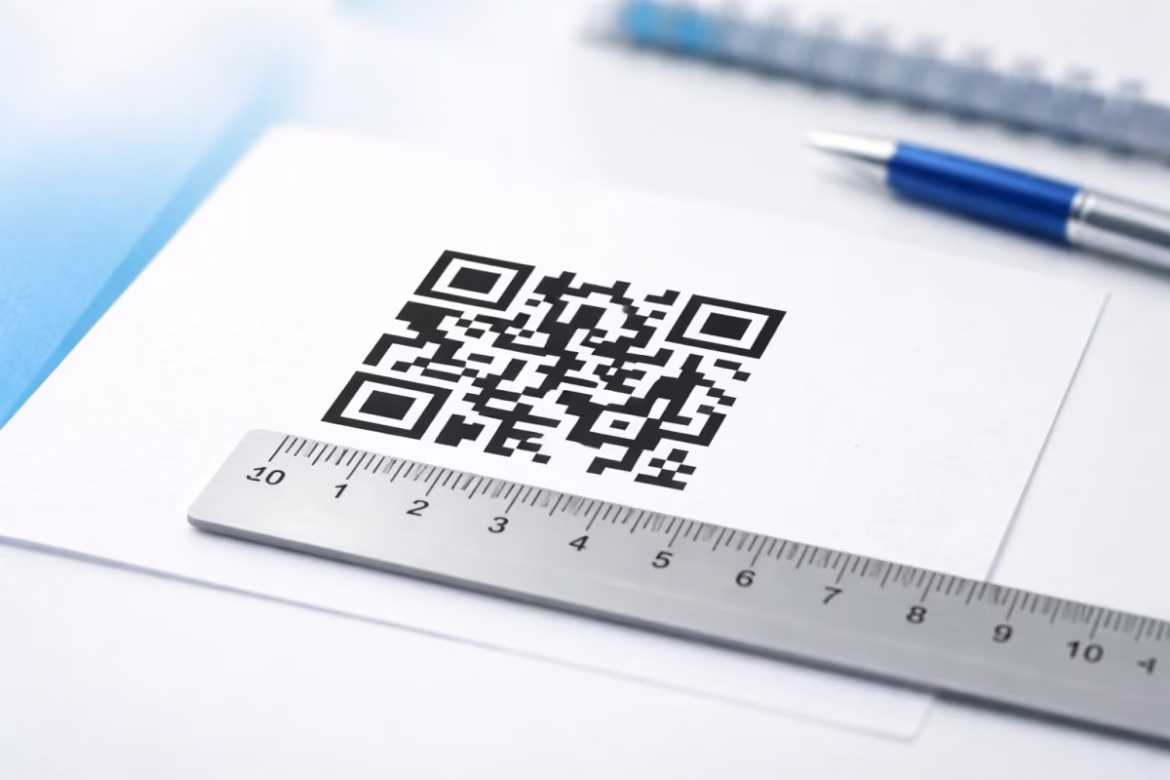
The simplest way to set QR code size for print is the 10:1 rule. Divide the scan distance by 10, and you get the minimum code width.
- Scanned from 30 cm away: at least 3 cm wide
- Scanned from 2 m away: at least 20 cm wide
- Scanned from 5 m away: at least 50 cm wide
Treat this as a floor, not a target. Low light, older phones, and a shaky hand all call for extra room.
Real Placements and Their Distances
Think about where the reader will actually stand, not where you stood while designing. Here are common placements with safe starting sizes.
| Placement | Typical scan distance | Minimum width |
|---|---|---|
| Business card | 15–20 cm | 2 cm |
| Flyer or menu | 25–30 cm | 2.5–3 cm |
| Table tent | 40 cm | 4 cm |
| Poster on a wall | 1–2 m | 10–20 cm |
| Shop window or banner | 3–5 m | 30–50 cm |
Creator and Event Promos
Event posters often get scanned from farther away than you expect. People stand in a crowd, behind a queue, or across a room.
If your poster sends fans to a TikTok LIVE, where many viewers send gifts after a TikTok recharge, size the code for the back of the room, not the front row. The person at the back is the one most likely to give up.
Rule 2: Size the Squares, Not Just the Code
This is the rule that gets missed most.
Why Square Size Matters More Than Code Size
A QR code is a grid of small squares called modules. A longer link needs more squares. If the code stays the same width, each square must get smaller to fit.
Small squares are fragile. Ink spread, a soft camera focus, or a slight blur hits them first. In one controlled test, doubling the size of each square let a code survive about twice as much blur. So a 3 cm code with a short link can scan better than a 3 cm code with a long one.
How to Get Bigger Squares at the Same Size
- Shorten the link. Every character you remove can mean fewer, larger squares.
- Use a dynamic code. It stores a short redirect, and you can change the destination later without reprinting.
- Remove tracking tags you don’t need. Long UTM strings make the grid denser.
- Pick the right error correction level. Level M suits clean indoor print. Move to Q or H only when the code will face scratches, dirt, or a logo in the middle, because higher levels add squares too.
Quick check: count the squares across one row of your code. If it looks like fine graph paper at your print size, shorten the link before you go any bigger.
Rule 3: Protect the Quiet Zone
What the Quiet Zone Is
The quiet zone is the blank margin around the code. Scanners use it to find where the code starts and stops. Denso Wave, the company that created the QR code, sets it at four squares wide on every side.
That margin is part of the code’s real size. A 3 cm code needs extra white space around it, not 3 cm squeezed into a 3 cm box.
Where It Gets Lost
- Trim lines and bleed on business cards cut into the edge
- Decorative frames and “Scan Me” borders sit too close
- Photo backgrounds run right up to the code
- Text or icons get nudged in during last-minute layout changes
Quick Fix
- Add the quiet zone to your size math first, then place the code.
- Keep another 2–3 mm of space beyond it near any trim edge.
- If a design needs a frame, draw the frame outside the white margin, never on it.
Rule 4: Export at the Final Size, Not Bigger or Smaller
Best Formats for Print
- SVG, EPS, or a vector PDF: sharp at any size, so this is your first choice
- PNG at 300 DPI at the exact print size: fine if your printer can’t take vector files
- JPG: avoid it, because its compression leaves smudges around every square
The Resizing Trap
Here is a common mistake. You download a small PNG, drop it into the layout, and stretch it to fit. The software smooths the edges as it enlarges, and every square goes soft.
If you must enlarge a pixel image, use “nearest neighbor” resizing. It copies pixels without blending, so the squares stay sharp. The better fix is simple, though. Generate a new code at the size you need, and skip the stretching entirely.
Rule 5: Match the Code to the Material and Finish
Paper and Finish
- Glossy lamination throws light back into the camera. Choose matte where you can.
- Uncoated paper lets ink spread into nearby squares. Give these jobs slightly bigger squares.
- Thermal paper fades with heat and time. Don’t rely on it for codes that must work for months.
Curved and Textured Surfaces
- Cups, bottles, and cans bend the code away from the camera. Place it on the flattest part and keep it small compared with the curve.
- Fabric and embroidery lose fine detail. Use bigger squares, a short link, and level H.
- Stickers on rough walls catch shadows. Test them in place, not on your desk.
Contrast and Color
- Use a dark code on a light background. Inverted codes, light on dark, fail on some scanners.
- Brand colors can work if the contrast stays strong. Deep navy on cream is fine. Pale gray on white is not.
- Keep busy patterns and gradients out of the code area.
Pre-Print Checklist
Run through this before you send anything to the printer.
- Measure the farthest scan distance
- Divide by 10 for the minimum width
- Shorten the link
- Confirm a four-square quiet zone
- Export vector or 300 DPI PNG at final size
- Check contrast and finish
- Print one proof at actual size
- Test with three different phones in real lighting
That last step takes five minutes and can save a whole print run.
FAQs
What is the minimum QR code size for print?
About 2 x 2 cm for a short link scanned up close. For anything scanned from farther away, divide the distance by 10. Longer links need more room.
How big should a QR code be on a poster?
Most wall posters are scanned from 1 to 2 meters away, so aim for 10 to 20 cm wide. Go bigger in crowded or dim spaces.
Does a logo make a QR code harder to scan?
It can. A logo covers part of the code, so use error correction level H, keep the logo small and centered, and test before printing.
Is SVG or PNG better for printing QR codes?
SVG is better because it stays sharp at any size. Use PNG only at 300 DPI at the exact print size.
Can I shrink a QR code to fit a small label?
Yes, but shorten the link first. Fewer squares let a small code stay readable. Then test it at the real label size.