A Mac desk setup can quickly fill with connections for a monitor, keyboard, external drive, and network. Add a phone that needs charging, and cables can take over. A mac docking station can simplify computer connections, while a separate charging solution keeps smaller devices ready. Plan the workstation around your routine and available space.
Make a List Before Comparing Docks
List the equipment you use and the connections it needs: HDMI or DisplayPort for a monitor, USB-A or USB-C for accessories, Ethernet for wired internet, or audio for a headset. Docks can look similar but offer different port combinations. A model with several USB-C ports may still lack the video output or memory-card reader you need. A compact travel dock may also have fewer connections than one designed to stay on a desk. Prioritize the ports you use every day. Extra connections are useful only when they serve a real purpose.
Check Display Support Separately
But display support is not determined by the connector alone. Compare the dock’s supported resolution and refresh rate with your monitor. For two displays, confirm that the dock supports that arrangement with your exact Mac model and chip. Mac computers vary in the number of external displays they can use, and some docks depend on particular technologies or software. Look up your Mac’s model information before shopping. A dock’s advertised maximum display count may not apply to every computer.
Match the Dock’s Power Output to Your Mac
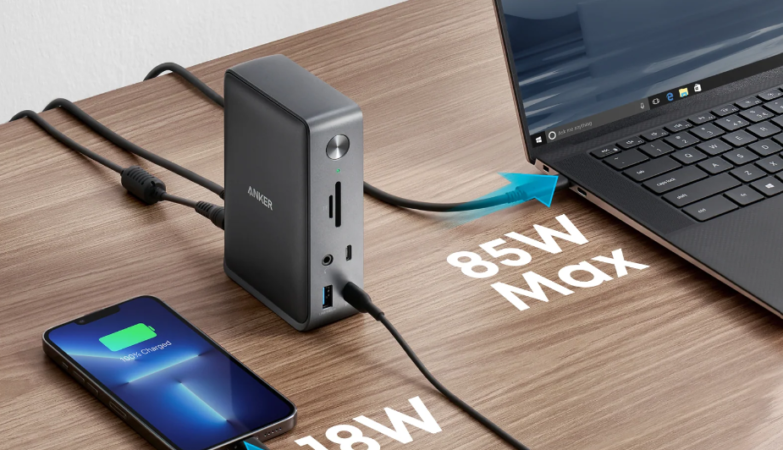
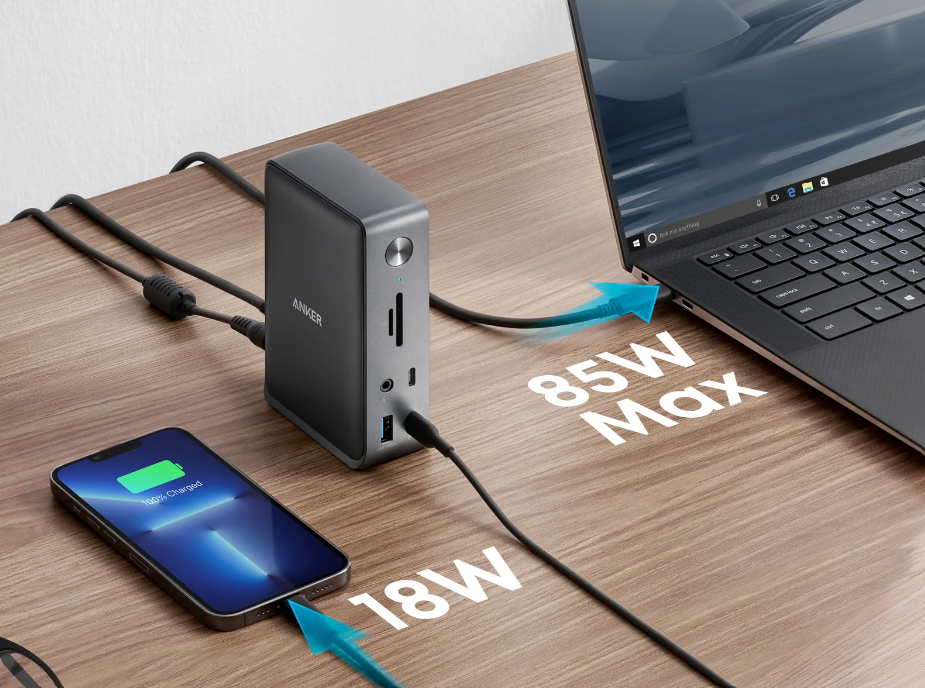
Some docking stations charge a Mac while connecting peripherals through one cable. This is convenient, but power delivery varies between models. Compare the dock’s host-charging output with your Mac’s requirements, and check whether its power adapter is included. A dock’s total power rating is not always the amount delivered to the laptop; attached accessories may use part of the available power. If you run demanding applications or connect several power-hungry devices, avoid choosing a dock with barely enough output for your needs.
Give Your Phone Its Own Charging Plan
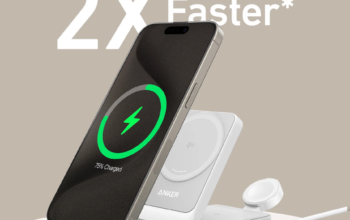
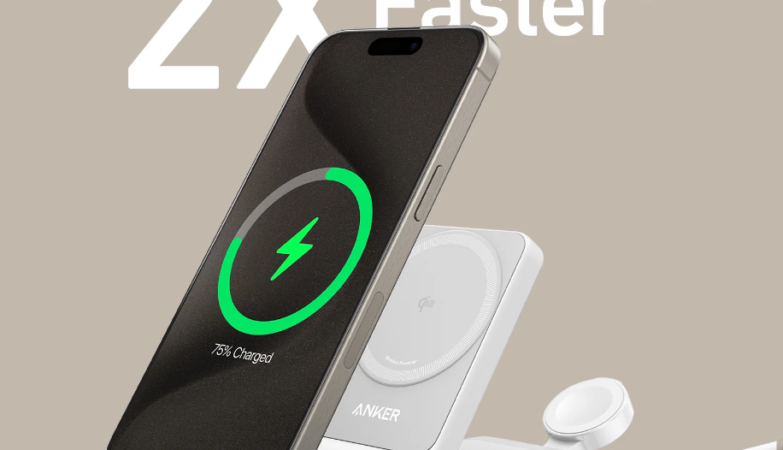
A computer dock is not automatically a phone charger. Its USB ports may supply power to an iPhone, but you might need to provide a cable, and the port’s output may be limited. An iphone charging station has a different purpose: it provides a dedicated place to charge a phone, often with a stand or wireless charging surface. Some models also accommodate earbuds or a smartwatch. Check compatibility with your iPhone and other devices. Wireless charging support, magnetic alignment, and included adapters vary.
Keeping phone charging separate from the Mac dock can make the desk easier to use. The Mac remains connected to its monitor and peripherals, while the phone has a convenient place nearby. A dock’s USB port and a cable may be enough, however, so consider whether a separate station would add genuine value.
Arrange Connections Around Your Routine
Port placement affects everyday convenience. Front-facing ports are useful for flash drives and accessories you connect temporarily. Rear-facing ports help hide cables that stay plugged in. A longer host cable helps when the Mac sits on a stand or farther across the desk. Leave enough room to disconnect the laptop without pulling other cables. Keep the dock on a stable, ventilated surface, and do not cover it with papers or equipment. A compact dock suits travel; a larger model may work better on a permanent desk.
Run Through a Compatibility Check
Read the dock’s specifications alongside your Mac’s details. Confirm the connection standard, display support, charging output, and operating-system requirements. Check which cables and adapters are included, especially when a feature depends on a particular port or software. After setting up, connect one accessory at a time. This makes it easier to identify a cable or compatibility issue before everything is plugged in.
Final Thoughts
A good mac docking station is the hub for computer connections, not necessarily the answer to every charging need on the desk. Choose it around your Mac model, monitor requirements, essential ports, and power needs. Then decide whether an iphone charging station or a simple cable is the better way to keep your phone ready. Giving each accessory a clear role can create a tidier, more practical workstation.
Frequently Asked Questions
1. Can a Mac docking station charge an iPhone?
Many docks supply power through USB ports, but charging speed depends on the port and cable. Check the dock’s output specifications.
2. Is a Mac docking station the same as a USB hub?
No. A basic hub generally adds a smaller set of ports. A docking station may also support displays, laptop charging, Ethernet, and other desktop connections.
3. Do I need a separate iPhone charging station?
Not necessarily. A suitable USB port and cable may be enough. A dedicated station is useful when you want a fixed stand or wireless charging area.
4. Will any dock support two monitors on a Mac?
No. Support depends on the Mac model, chip, dock technology, and connection method. Verify the exact combination before purchasing.
5. Can I leave my Mac connected to a dock all day?
That is a common use for a compatible dock. Keep equipment ventilated, use suitable power accessories, and follow the manufacturers’ guidance.