You click Uninstall, watch the progress bar finish, and the program is still sitting in your Start menu. Sound familiar?
A standard built-in uninstaller for Windows handles simple apps well. But it often struggles with stubborn programs, leaving behind folders, background services, and registry entries that slow your PC over time.
We tested the leading options to find the best uninstaller tools 2026 has to offer. Each one was tried on Windows 10 and Windows 11 with the same mix of ordinary apps, bloatware, and hard-to-remove software. Here is what worked, what didn’t, and which tool we’d install first.
Top Contenders Overview
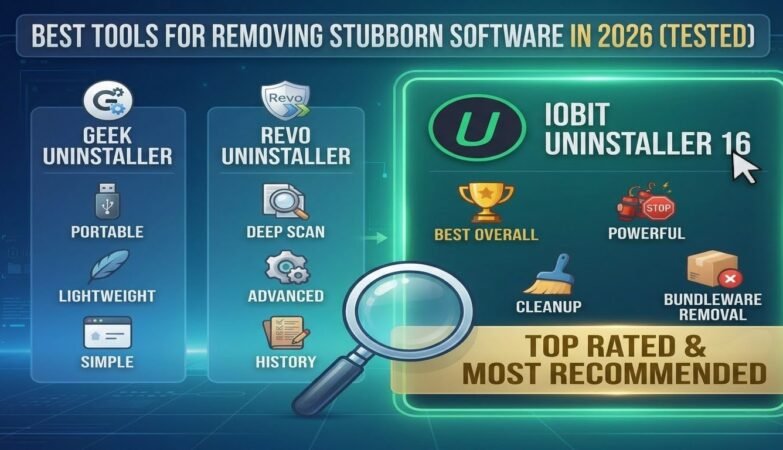
We narrowed our list to three popular tools. Each removes ordinary apps well, but they differ in depth, speed, and ease of use.
Geek Uninstaller
Geek Uninstaller is the tool to pick if you want speed without clutter. It is a small, portable app that launches instantly and needs no installation. Because it is portable, you can run it from a USB drive without changing your system. Its Force Removal option helped us clear a few apps that refused to go quietly. That makes it handy for older laptops and quick repairs.
Pros: Lightweight, fast, portable, easy for beginners.
Cons: Limited advanced features and fewer extra cleanup tools.
Revo Uninstaller
Revo Uninstaller has long been a favorite for thorough cleanup. It creates a System Restore point before removing anything, then scans for leftover files and registry items in several modes. Its Hunter Mode lets you target a program by pointing at its window or icon. That safety net is reassuring when you are removing something deeply integrated.
Pros: Deep leftover scanning, automatic restore point, strong for tricky programs.
Cons: The interface feels slightly dated, and scans can take longer.
IObit Uninstaller
IObit Uninstaller was our top performer. The modern interface is easy to follow, and its database of stubborn apps helped it handle programs that gave other tools trouble. Batch uninstall and bloatware removal make it a practical, highly efficient uninstaller for Windows, whether you are cleaning one app or twenty. It also lists browser plug-ins and preinstalled Windows apps you may not need. In our tests, the leftover scan after removal was quick and easy to review before deleting.
Pros: Modern interface, batch uninstall, bloatware removal, strong stubborn-app database.
Cons: Some advanced tools sit behind the paid version, and the installer may suggest optional extras, so read each screen.
None of these tools is perfect, so the right pick depends on how deep you need to clean.
Feature Comparison
Here is how the three tools compared in our hands-on testing. Ratings are our own general impressions, not lab benchmarks.
| Tool | Extra Tools (Bloatware/Relocation) | Best For |
| Geek Uninstaller | Force removal, Store apps | Lightweight, portable use |
| Revo Uninstaller | Restore point, extra cleaners | Deep cleanup |
| IObit Uninstaller | Bloatware removal, install monitor | Best overall |
Geek Uninstaller is quick but basic. Revo digs deepest, though it takes more time. IObit balances speed, accuracy, and convenience, which is why it earned our top spot. If you regularly need to uninstall stubborn programs or remove leftover files in bulk, that balance matters.
Speed depends on how many apps you have installed and how large each one is, so your experience may vary slightly.
How to Use IObit Uninstaller for Quick Cleanup
Here is the quickest workflow we found for clearing out old software. The process takes only a few minutes on Windows 10 or Windows 11.
- Install: Download IObit Uninstaller from the official website, run the setup, and choose custom installation if you want to skip optional extras.
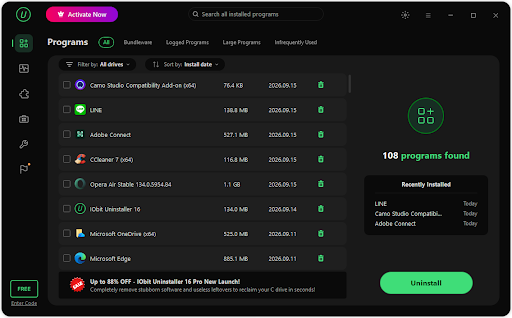
- Select multiple applications: Open the Programs section, tick every app you no longer need, and choose the batch uninstall option.
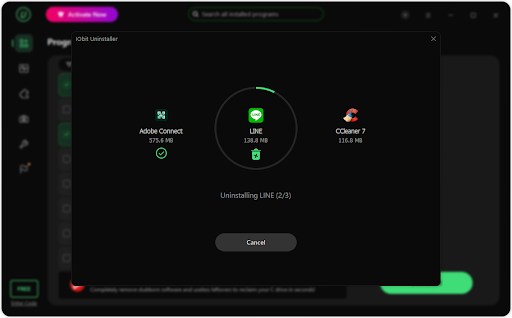
- Confirm uninstallation results: Tick the option to remove leftovers automatically, then confirm. The tool removes the apps and clears remaining files and registry entries in one pass.
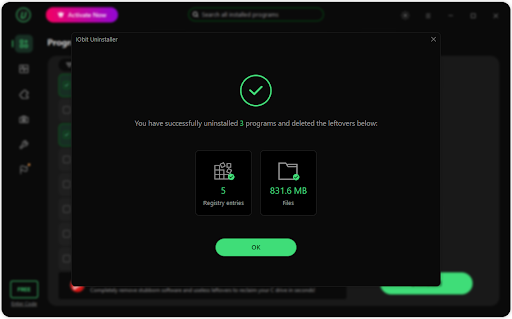
This last step is what separates a proper uninstall from the basic Windows method. Restart your PC if prompted so Windows can finish removing locked files.
Pro tip: Enable the restore point option before a large batch removal, so you can undo anything you removed by mistake.
Final Verdict: Which Uninstaller Is Right for You?
After weighing speed, depth, and ease of use, IObit Uninstaller stands out among the best uninstaller tools 2026 offers, and it is our pick for most people. It combines a clean interface, batch uninstall, and bloatware removal, so you can remove stubborn software without guesswork.
Still, the right choice depends on your needs:
- Geek Uninstaller: best for lightweight, portable, quick removals.
- Revo Uninstaller: best if you want the deepest leftover scan.
- IObit Uninstaller: best overall for everyday users and bloatware cleanup.
Beginners will likely feel most comfortable with IObit, while technicians may prefer Revo’s extra depth.
Whichever you pick, back up important data first and review what each scan finds. If you are ready to clean up your PC, start with IObit Uninstaller and see how much space you recover. Your PC will feel lighter for it.