Have you ever made a 3D model and wanted to use it in Source Filmmaker? It may look great in Blender but not work in SFM. This is where SFM Compile can help you.
SFM Compile turns your 3D model into files that Source Filmmaker can read. It helps you bring custom characters and objects into your scenes. You can then use them to make videos and fun animations.
In this 2026 guide we will explain how SFM Compile works. You will learn about the tools and files you need. We will also cover model setup and simple steps to help you get started.
What Is SFM Compile?
SFM Compile is the process of turning 3D model data into files that Source Filmmaker can use. It takes files made for the Source engine and builds a model that can work inside SFM.
Think of it like changing a file into a new form. Your 3D model may work in Blender but SFM needs its own file types. The compile process helps make that change so SFM can load your model.
Many creators use SFM Compile to add custom objects and characters to their projects. You might want a new chair for a room or a character for a short film. Both can need this process.
How Does SFM Compile Work?
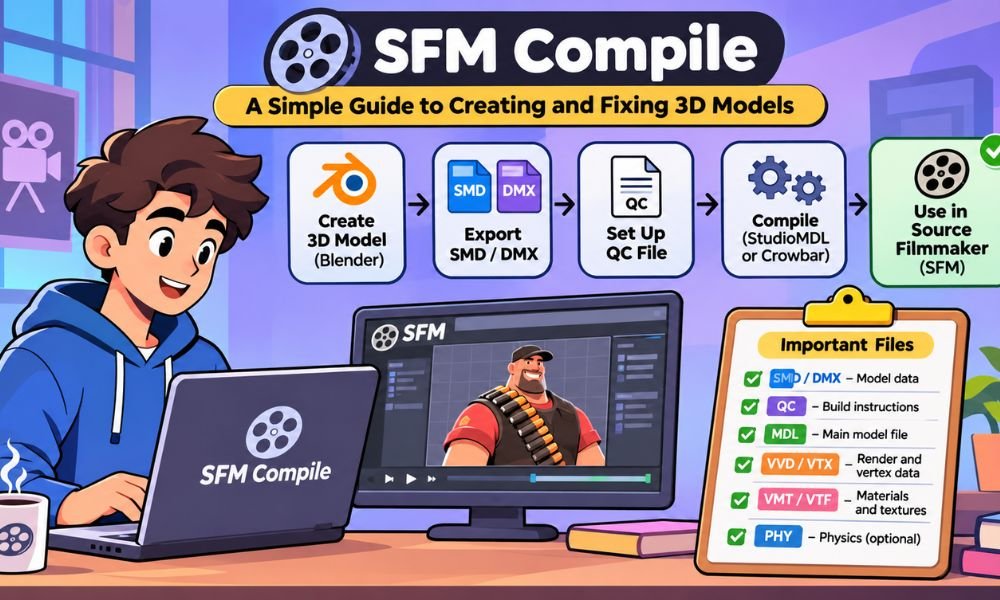
The SFM Compile process starts with a 3D model. You can make one in Blender or use a model you have permission to edit. The next step is to prepare it for the Source engine.
You then export the model as an SMD or DMX file. These files hold the model data that the Source tools need. A QC file tells the compiler how to build the model and where its parts belong.
StudioMDL reads the QC file and creates the final model files. Crowbar can help you run this tool. After the files are ready you can load the model in Source Filmmaker and test how it looks.
Simple SFM Compile Process
3D Model in Blender
Best Tools for SFM Compile
Blender is one of the most useful tools for making 3D models. You can use it to create objects and characters. It also helps you change model size and prepare bones for animation.
Blender Source Tools is an add-on that helps export models as SMD or DMX files. These are the file types used in the Source model process. Without the right export tool your model may not be ready.
StudioMDL is the main tool that builds Source model files. Crowbar gives you an easier way to use it. Crowbar has a simple screen where you can pick files and read messages from the compiler.
Crowbar vs. StudioMDL
| Crowbar | StudioMDL |
|---|---|
| Has a simple interface | Uses commands |
| Good for beginners | Good for direct control |
| Helps select QC files | Reads and builds QC files |
| Shows compile logs | Creates compiled models |
| Can also decompile models | Main model compiler |
Both tools are useful for SFM Compile. Crowbar is often easier for new users because it has clear options. StudioMDL does the actual work and can also be used on its own.
Important Files Used in SFM Compile
SFM Compile uses several file types. Each one has its own job. Some hold the model shape while others hold textures or instructions. Knowing these files can help you fix problems much faster.
SMD and DMX files carry model data such as mesh shapes and bones. QC files tell StudioMDL how to build the model. They can also set the model name and tell the compiler which files to use.
After compilation you will usually see MDL and other support files. Materials are stored in separate folders. Keeping these files in the right places is important because missing parts can stop your model from working.
Main SFM File Types
| File | What It Does |
|---|---|
| SMD | Holds model or animation data |
| DMX | Holds Source model data |
| QC | Gives build instructions |
| MDL | Main compiled model |
| VVD | Holds vertex data |
| VTX | Helps render the model |
| VMT | Sets material details |
| VTF | Holds texture images |
| PHY | Holds physics data |
| ANI | May hold animation data |
You do not need every file type for each project. A simple object may need fewer parts than a moving character. The files you need depend on the model and what you want it to do.
How to Prepare 3D Models for SFM Compile
Before using SFM Compile you should check your model in Blender. Make sure its size and shape look right. Check that the mesh has no unwanted parts and that its UV map is ready.
If your model is a character then check its bones. The bones help the character move during animation. They must have the right names and links. The mesh must also follow the correct bones.
You should also check your textures and file paths. If your model needs collision then prepare a simple collision shape. A clean model with well-made files is much easier to compile and test.
Simple Model Preparation Tips
A small object is a good first project. You could make a box or a chair in Blender. These models are easier to check because they do not need a full character skeleton.
Make sure you save your Blender project before exporting. This gives you a copy that you can edit later. If the exported model has a problem you can return to the original project.
Do not add too many features at once. Start with the basic shape and one material. Once that model works in SFM you can add more details and test each new change.
How to Set Up SFM Compile Step by Step
Setting up SFM Compile becomes easier when your files are well organized. Start by making a project folder. Keep your model files and QC file together. Place your material files in their own folder.
Next export your model from Blender as SMD or DMX. Create a QC file that points to the exported model. The QC file must also include the right model name and material path.
Now open Crowbar and choose the compile option. Select your QC file and set the correct Source Filmmaker game folder. Run the compiler and read the log to see if the process worked.
Example of a Simple QC File
Here is a basic QC example for a small static model:
$modelname "custom/my_prop.mdl"
$body "Body" "my_prop.smd"
$cdmaterials "models/custom/my_prop/"
$surfaceprop "metal"
$sequence "idle" "my_prop.smd" fps 30
$staticprop
This example gives StudioMDL the model name and source file. It also sets the material folder and a basic sequence. The $staticprop line marks the model as a static object.
Your model file must match the name used in the QC file. You should also check the material folder path. For a more complex model you may need extra lines for bones or collision data.
Keep Your Project Folders Clean
A simple folder setup can save you time. You can keep source files in one place and material files in another. This makes it easier to find a missing file when something goes wrong.
For example your project can have a modelsrc folder for SMD and QC files. A materials folder can hold VMT and VTF files. The compiled files must go into the right Source Filmmaker game folders.
Always check where your files will be saved before you compile. A model may build without errors but still not appear in SFM if it goes to the wrong folder. Correct paths help avoid this problem.
How to Use Crowbar for SFM Compile
Crowbar makes SFM Compile easier for beginners. It gives you a simple way to choose files and start the process. You do not need to type long commands. Most steps can be done through its main screen.
First open Crowbar and select the Compile tab. Choose the QC file for your model. Make sure the game settings point to Source Filmmaker. The correct setup helps StudioMDL find the files it needs.
Now start the compile process and wait for it to finish. Crowbar will show messages in its log window. Read these messages carefully. They can tell you if your model was built or if something went wrong.
Easy Crowbar Tips for Beginners
Always check your QC file before you start. Make sure the model name and file paths are correct. A small spelling mistake can stop the compiler from finding your files.
Do not close Crowbar as soon as the process ends. Read the log first. A model may have warnings even when the compile finishes. These warnings can help you find problems before opening SFM.
Common SFM Compile Errors and Easy Fixes
SFM Compile errors can happen even when your model looks fine in Blender. Some problems come from missing files. Others happen because of wrong paths or model settings. Most basic errors are easier to fix when you know where to look.
One common problem is purple and black textures. This usually means SFM cannot find the right material or texture. Check the VMT file and the texture path inside it. Also check the $cdmaterials line in your QC file.
Another problem happens when the model does not appear in SFM. Your files may be in the wrong folder. Check the $modelname line and the game folder used during compilation. Make sure the model files are together.
Other Common SFM Compile Problems
Characters can sometimes move in strange ways after compilation. This may happen when bones or mesh weights are wrong. Check the skeleton in Blender and make sure the animation uses the same bone setup.
Missing SMD files and broken QC commands can also stop the process. Read the first useful error in the log. If SFM crashes when loading a model then try removing extra features and testing a simpler version.
| Common Problem | Easy Fix |
|---|---|
| Purple and black textures | Check material paths |
| Model does not appear | Check output folder |
| Missing SMD file | Check file name and location |
| QC file error | Check commands and spelling |
| Broken character bones | Check skeleton and weights |
| SFM crashes | Test a simpler model |
How to Test Models After SFM Compile
After SFM Compile finishes you should test your model inside Source Filmmaker. A successful compile does not always mean everything works. Your model may still have missing textures or other problems.
Open SFM and create or open a session. Add an animation set for a new model. Search for your model in the model browser. If it appears then load it into your scene.
Look closely at the model. Check its shape and textures. If it has bones then try moving them. If it has animations then test those too. This helps you find problems before using the model in a full project.
Check Your Compiled Model Files
A compiled model usually includes an MDL file and matching VVD and VTX files. Some models also have PHY files. Keep these files together because the engine may need them to load the model.
Materials are stored in a different folder. Make sure the VMT and VTF files are in the correct places. If your model looks purple and black then check these files before compiling everything again.
SFM Compile Tips for Better 3D Models
Good file habits can make SFM Compile much easier. Give your models simple names and keep your folders clean. This helps you find files quickly and makes future changes less confusing.
Start with a basic model before adding more features. For example you can compile a simple chair with one material. Once it works you can add more detail or a collision shape.
Save a copy of every QC file that works well. This gives you a safe version to return to if something breaks. Change only one thing at a time so you can see what caused a problem.
Simple Ways to Save Time
Check your exported SMD or DMX file before compiling. Make sure it is the latest version. Using an old export can make you think your new changes did not work.
Read the compile log after every test. Fix the first clear error before changing other settings. This simple habit can save time and help you learn how the tools work.
SFM Compile for Static Models and Characters
SFM Compile works with both simple objects and moving characters. However each type needs a different setup. A static object usually needs fewer files and settings than a character with bones.
For example a table or chair may only need one mesh and a material. It may also use a collision shape. A character needs a skeleton so its body parts can move during animation.
Characters can also use facial shapes and extra animations. Some models have different skins or parts that can be changed. These features need more setup in the QC file and more testing inside SFM.
Extra Features for Character Models
Bodygroups let you show or hide certain model parts. Skins can let a model use different material sets. These features are useful when you want one character to have several looks.
Attachments can mark places for other objects to connect. Facial flexes can help a character make expressions. Add these features only after your basic character works well in Source Filmmaker.
SFM Compile and Source 1 vs. Source 2
Classic Source Filmmaker uses the Source 1 engine. This is why SFM Compile uses tools such as StudioMDL and file types such as SMD and DMX. These tools help create models for the older Source system.
Source 2 uses a different way to prepare and build model files. You cannot assume that the same QC file and StudioMDL steps will work in a Source 2 project.
Before starting a model always check which engine your project uses. If you are working with classic Source Filmmaker then follow the Source 1 process. For Source 2 you will need the tools made for that engine.
Why This Difference Matters
A model made for one engine may not work in another without changes. The file types and build tools can be different. This is important when using models from other games or projects.
If you are new to SFM then start with the classic Source 1 workflow. Learn how to prepare a model and compile it first. Once you understand the basics it becomes easier to learn other tools.
Conclusion
SFM Compile is an important part of adding custom 3D models to Source Filmmaker. It turns model data into files that SFM can load. With the right tools you can create new objects and characters for your scenes.
The process becomes easier when you understand Blender and StudioMDL. Crowbar can also help you compile models and read errors. Keeping your files organized and checking their paths can prevent many common problems.
Start with a small model and test it inside SFM. When it works you can try more features. With practice you can learn to fix errors and build better models for your own animation projects.
(FAQs)
What is SFM Compile used for?
SFM Compile is used to turn 3D model files into a format that Source Filmmaker can read. It helps creators add custom characters and objects to their projects. This makes it useful for making animations and videos.
Is SFM Compile free to use?
Yes. The main tools used for SFM Compile are free. Blender is free and StudioMDL comes with Source tools. Crowbar and Blender Source Tools are also free. You can start learning without buying expensive software.
Can beginners learn SFM Compile easily?
Yes. Beginners can learn SFM Compile by starting with simple models. A small object like a box or chair is a good first project. Learning how files and folders work will make the process much easier.
Do I need Blender for SFM Compile?
No. Blender is not required but it is a popular choice. You can use other 3D programs that support the needed Source file types. Blender is helpful because it is free and has tools for models and animations.
Can I compile SFM models without Crowbar?
Yes. Crowbar is not required for compiling models. StudioMDL is the tool that does the actual work. Crowbar simply makes it easier to choose files and read logs. You can also run StudioMDL through commands.
What is a QC file in SFM Compile?
A QC file is a text file that tells StudioMDL how to build your model. It includes the model name and source file paths. It can also include material paths and animation settings. A correct QC file is important.
Why does my SFM model show purple and black textures?
Purple and black textures usually mean Source Filmmaker cannot find the right materials. This can happen because of missing VMT or VTF files. Wrong material paths can also cause it. Check the files and folder names carefully.
How can I fix SFM Compile errors?
Start by reading the compile log in Crowbar or StudioMDL. Look for missing files and wrong paths. Check your QC commands for spelling mistakes. Fix one problem at a time and compile again to test your changes.
Can I use FBX files directly in SFM Compile?
No. StudioMDL does not normally compile FBX files directly. You first need to open the FBX model in a suitable 3D program. Then export it as SMD or DMX and use a QC file to compile it.
What is the difference between SFM Compile and Source 2 compilation?
SFM Compile usually refers to the Source 1 model process used by classic Source Filmmaker. It uses StudioMDL and QC files. Source 2 uses different tools and model formats. The same steps will not always work.
Continue reading: Eleksan: Everything You Need to Know About This Turkish Company